

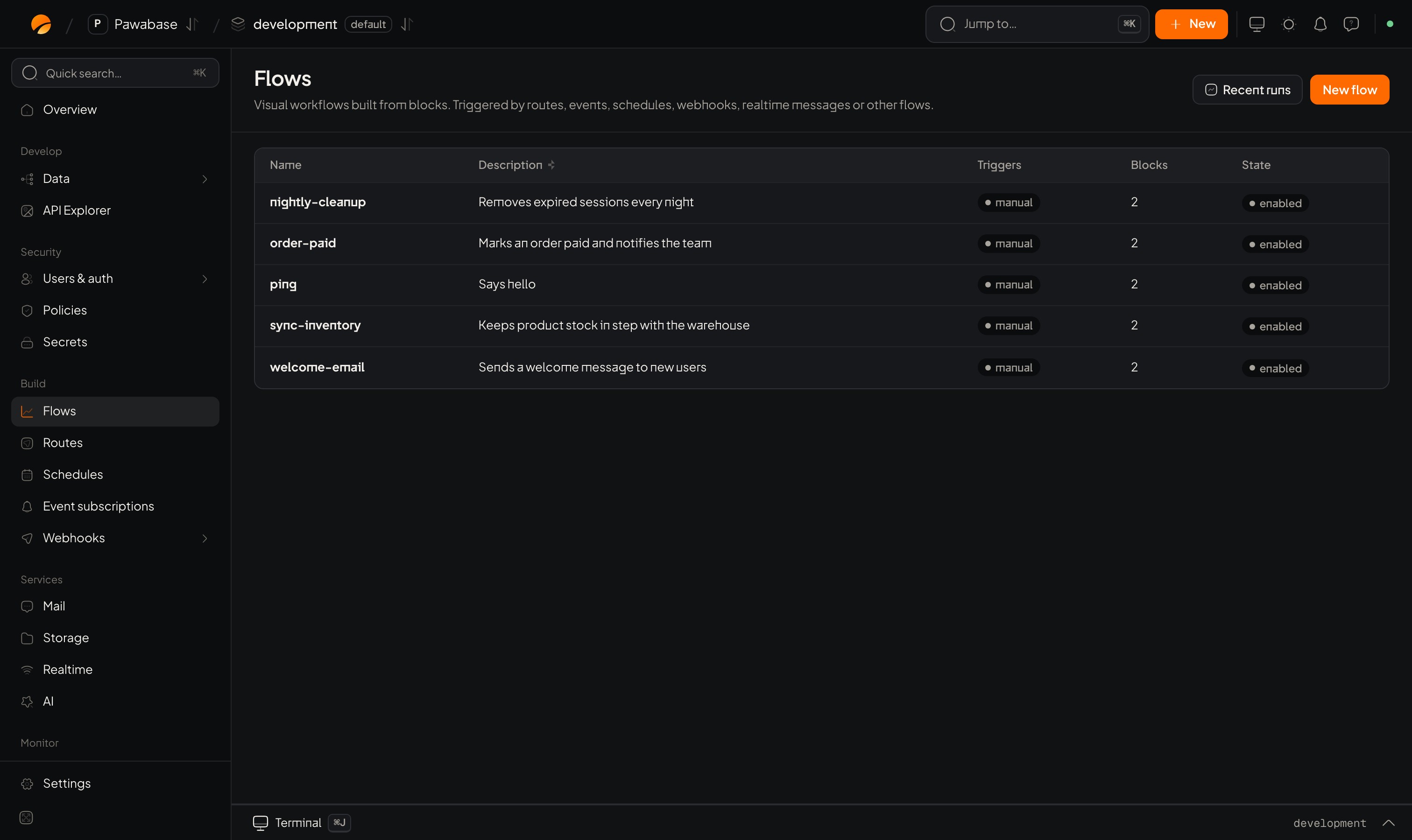
Flows: the list of flows, Recent runs and New flow.
Open it
Flows in the sidebar lists your flows with their description, triggers, number of blocks and state. Click one to edit it, or New flow to start one.The parts of the editor
Flow settings
Blocks, exits and node ids
Each block has exits. Most have one,next. Blocks that decide something have one per answer: If has true and false, Get record has next and missing, Check policy has allowed and denied. Connect each exit to what should happen in that case. An exit with nothing connected simply ends that path.
Each block has a Node id, such as load_customer. Later blocks read its output as steps.<node id>.output, so give important blocks short, clear ids before you reference them; renaming later means updating every reference.
Use values from earlier steps
Any setting can use values from the run. Type{ or use Pick a value with to choose from what’s available:
A setting that is only a value (
"{{ input.items }}") passes the value itself: a list stays a list, a number stays a number. A value inside text ("Order {{ input.id }}") becomes text. A missing value becomes empty, so test with realistic data. Filters like | default:"friend" and | upper are listed on the block reference.
Use a value from the flow instead switches a field that normally takes a fixed choice (a table, a template) to one picked at run time.
Build one: a receipt when an order is paid
1
Choose the trigger
Add an Event trigger with the event
orders.updated. (Or use a Resource change trigger for orders, ticking updated.) The run’s input is { "event": { … } } with the order at input.event.payload.record.2
Only continue for paid orders
Add an If block with the condition “
input.event.payload.record.status equals paid”. Connect its true exit onwards; leave false empty.3
Load the customer
Add Get record with id
customer, table customers, id {{ input.event.payload.record.customer_id }}. Connect missing to a Log block so you notice orders without a customer.4
Send the email
Add Send email: To
{{ steps.customer.output.email }}, Template receipt, Data {"order": "{{ input.event.payload.record }}", "customer": "{{ steps.customer.output }}"}. See Sending email.5
Validate and save
Validate, fix anything it lists, then Save.
Validate
Validate checks that the flow can run and lists each problem with the block it belongs to:
Saving also checks the flow, so a flow that can’t run is never saved.
Test run
- Click Test run.
- Fill Input (JSON) with what the trigger would carry. For an event trigger, that’s
{"event": {"name": "orders.updated", "payload": {"record": {…}}}}; for an HTTP trigger, the request body. - Optionally set Run it as: a user id and roles. Rules and Require sign-in blocks then behave as they would for that person. Leave it empty to run as a system run.
- Optionally pick Start from a particular trigger, when the flow has more than one.
- Run it. You get the Result, the Trace (every block’s input, output and chosen exit, in order, with timing) and the Logs.
development, and pause mail delivery there.
Read the trace
Read from the top and find the first block whose output isn’t what you expected. That’s nearly always the bug: a wrong path (input.record instead of input.event.payload.record), a value that’s text when you needed a number, or an exit connected to the wrong place.
Run and watch it for real
Once saved and enabled, a flow runs whenever its trigger fires. Each run appears under Activity → Flow runs with its trace (if Record runs is on). Flows started by events, schedules and hooks run as background jobs; a failure shows there too.Call a flow from your app
A flow with an HTTP request trigger that has no path can be called by name; with a path, it’s a route:Common mistakes
Good practice
- One purpose per flow; name it for what it does (
send-receipt). - Give blocks meaningful node ids.
- Make every flow with side effects safe to repeat: check a marker before acting.
- Keep secrets in Secrets.
- Test in
development, then promote.
Flows
What flows are and how they’re called.
Block reference
Every block and setting.
Events
Start flows from events.
Background jobs
Retries and failures.