

Where
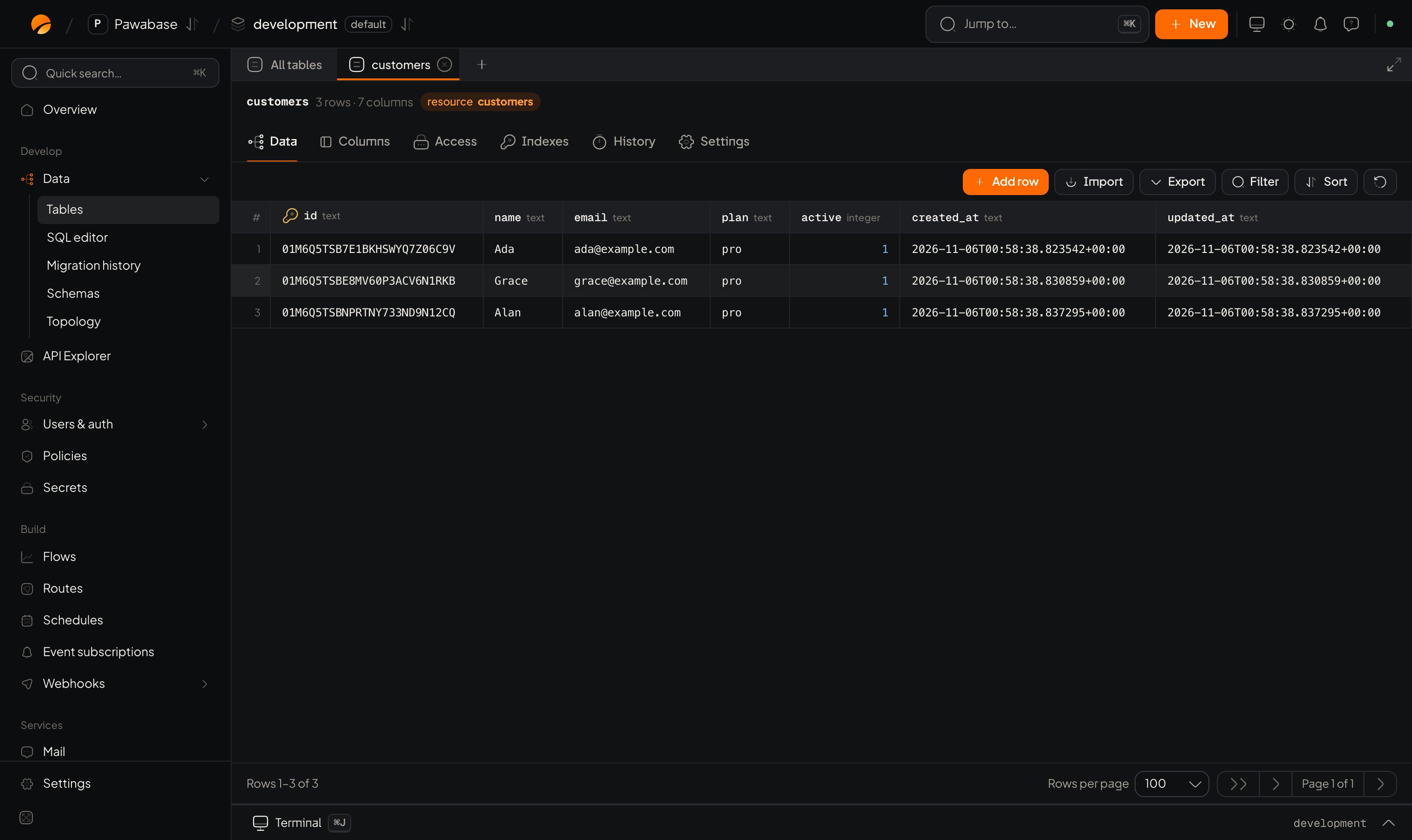
Data → Data: the table editor with its tabs and the sidebar of tables.
Data → Data: the table editor.
Create a table
- Click Create table. A sheet opens with a switch at the top between Configure (the form) and the raw definition.
- Fill the sections from top to bottom. Each is explained below.
- Click Save changes.
Details
Columns
Add column, name it, choose a Column type, and open the row to set constraints and flags. The full reference is Columns and types.Access
Which endpoints exist, and who may call each. Choose a Quick access set or set each of the five actions. See Access.Relations
Include related rows with?expand=name. See Relations.
Behaviour
Timestamps, Owner field, Emit events, Broadcast changes, Capture changes made outside the API, Cache responses, Rate limit, Time zone. Each is described in Table settings.After you save
Open the table in the sidebar. Its tabs:Change a table later
Edit on the Columns, Access, Indexes or Settings tab and save. If the change affects the database (a new column, a new index), Studio shows a pending migration with the SQL; review it and apply. Adding a column is safe; changing or removing one is flagged Needs review. See Migrations and history.Keep tables and definitions in step
A table can drift from its definition: someone adds a column with SQL, or you edit the definition and don’t apply it. The table’s status tells you:Bring in an existing table
If a table already exists in the database (made by a migration or with SQL), turn it into a resource instead of retyping it. On the Data page choose Import a table, pick the table, give it a Resource name, and Studio reads its columns and proposes a definition. Tables Pawabase uses internally are hidden and can’t be imported. After importing, set the Access rules: a new resource is private until you do.Create tables for every resource
The SQL page has a Create tables button: it creates or extends the tables for every resource at once. Columns are only ever added; nothing is dropped or retyped. Use it after promoting definitions to a new environment.Deleting
- Remove the resource (in the table’s Settings): the API stops serving the table. The table and its rows stay.
- Drop the table: do it deliberately in the SQL editor, after a backup. Studio never drops a table for you.
Columns and types
Define what a row holds.
Migrations and history
How changes reach the table.