

production identities into staging, or to migrate users from another system.
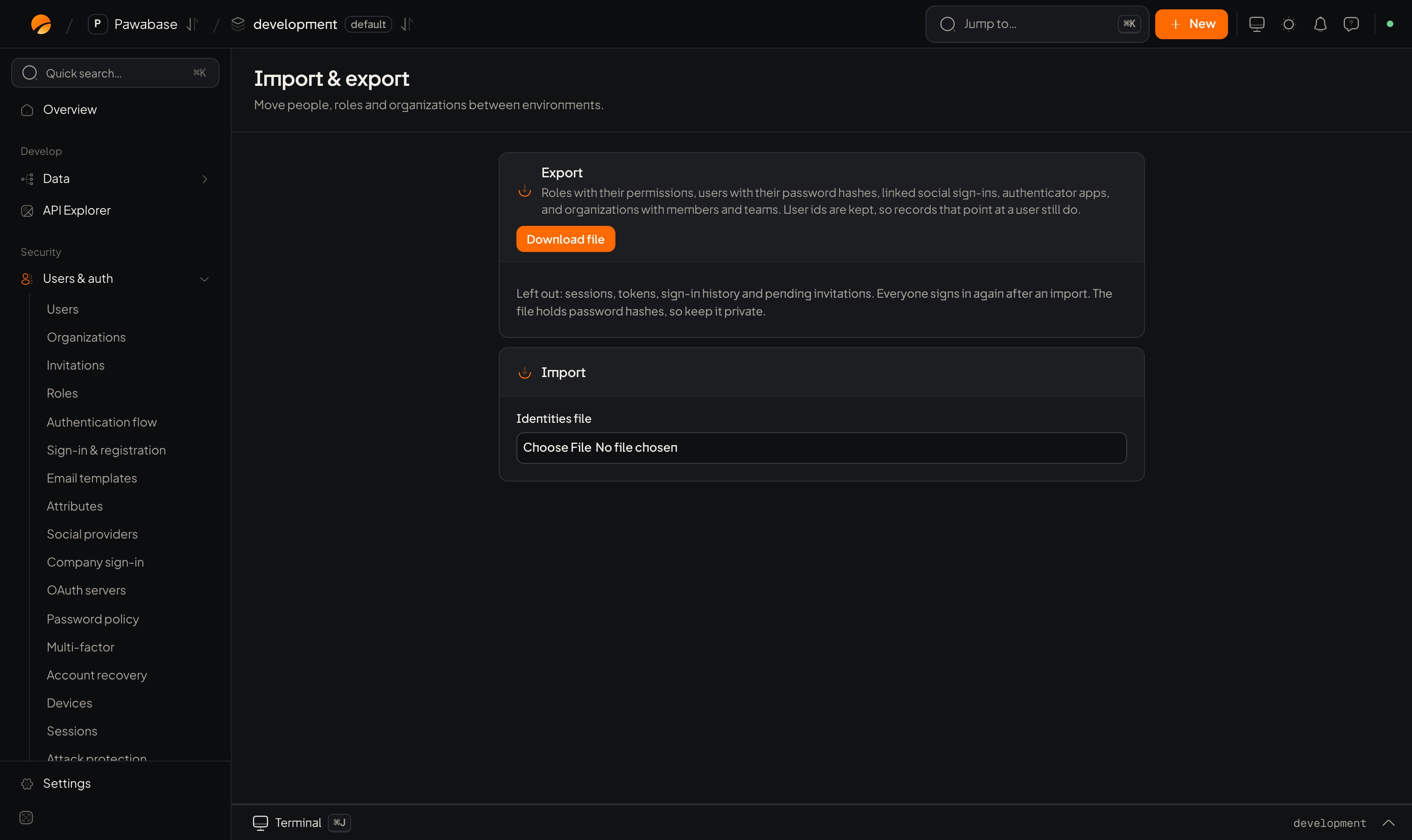
Users & auth → Import & export.
In Studio
Users & auth → Records → Import & export.- Export: downloads an identities file.
- Import: choose an Identities file. Tick Replace what is here to make the environment match the file exactly; leave it off to add and update. With it on, Studio first removes this environment’s users, roles and organizations.
Move users between environments
- In the source environment, Export.
- Switch to the target environment, Import, and choose the file.
- Leave Replace what is here off to merge, or on to make the target match the file exactly.
Migrating from another system
- Export users from the old system.
- Convert it to the identities file format (export a few users from Pawabase first to see it), with
email,name,roles, a verified email, and metadata, then Import it. If you can’t carry passwords over, leave them empty and let people use a sign-in link or “Forgot password”. - Include organizations and their members in the same file, or create them under Organizations afterwards.
- Test with a few accounts, then run the rest in batches.
- Keep the old IDs in Private metadata (
app_metadata) so you can join old records to new users.
Backups
Back up the whole project.
Users
Manage individuals.